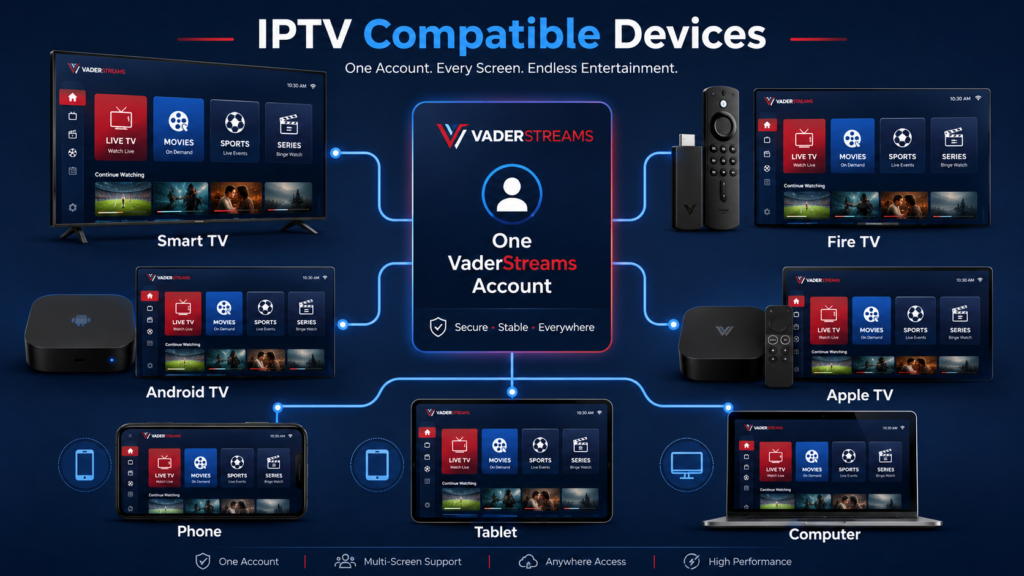
You can watch IPTV on Any Device modern by installing a compatible application, entering the account details supplied by your television provider, and connecting the device to a stable internet connection. Smart TVs, Fire TV devices, Android TV and Google TV boxes, Apple TV, smartphones, tablets, computers, Chromecast devices, and some gaming consoles can all support internet-delivered television.
The exact setup depends on the device. Some platforms support dedicated IPTV players, while others work better through an official provider app, web browser, casting, screen mirroring, or an HDMI connection.
For Canadian viewers, device choice matters because internet quality, available applications, French- and English-language interfaces, television age, and household viewing habits can all affect the experience. This guide explains the safest and most practical setup method for every major device category.
Quick Answer: Watch IPTV on Any Device
| Question | Quick answer |
|---|---|
| What do you need? | An authorized IPTV subscription, account details, compatible player or provider app, and internet connection |
| Easiest devices | Android TV, Google TV, Fire TV, and Apple TV |
| Smart TV support | Available on many Samsung, LG, Android TV, Google TV, and Fire TV televisions |
| Mobile support | Android phones, Android tablets, iPhones, and iPads |
| Computer support | Windows PCs, Macs, laptops, browsers, and compatible desktop players |
| Setup difficulty | Easy to moderate |
| Typical setup time | Approximately 10–30 minutes |
| Recommended connection | Ethernet when practical; otherwise stable 5 GHz or 6 GHz Wi-Fi |
| Practical speed target | Around 10 Mbps per HD stream and 25 Mbps or more per 4K stream |
| Multi-screen viewing | Requires enough internet bandwidth and a subscription that permits simultaneous streams |
| Best fallback method | Casting, screen mirroring, a web player, or connecting a streaming device through HDMI |
What You Need Before You Start
An IPTV player alone does not normally include television channels. Before installing anything, make sure you have the following.
1. An IPTV or Internet Television Subscription
Use a provider that clearly identifies its service, pricing, support options, terms, and authority to distribute the content it offers.
The provider should supply one of the following:
- An email address and password
- A username, password, and server address
- An M3U playlist URL
- A portal address
- A device activation code
- Access through the provider’s official application
- Access through a browser-based player
Keep these details private. Anyone with the complete login information may be able to access your subscription.
2. A Compatible Device
Check the exact model and operating system rather than relying only on a description such as “Smart TV.”
For example, these televisions may all use different application platforms:
- Samsung Smart TV
- LG Smart TV
- Android TV
- Google TV
- Roku TV
- Fire TV
- VIDAA TV
- Older smart televisions with discontinued app stores
A player available on Android TV may not exist in the Samsung, LG, Roku, or Apple app store.
3. A Suitable Application
Your provider may recommend:
- Its official branded application
- A third-party IPTV player
- A media player that supports network streams
- A web browser
- A casting application
Install applications from the device’s official app store or the developer’s verified source whenever possible. Avoid modified installation files from unknown websites.
4. A Stable Internet Connection
Streaming depends on consistency, not just the maximum speed advertised by your internet provider.
Netflix currently recommends at least 3 Mbps for 720p, 5 Mbps for 1080p, and 15 Mbps for 4K streaming. IPTV stream bitrates vary, so allowing additional capacity for speed fluctuations and other household activity is sensible.
As a practical starting point, aim for:
| Streaming situation | Suggested available speed |
|---|---|
| One standard-definition stream | 5 Mbps or more |
| One HD stream | 10 Mbps or more |
| One Full HD stream | 10–15 Mbps or more |
| One 4K stream | 25 Mbps or more |
| Two simultaneous HD streams | 25–40 Mbps or more |
| Several streams and other household activity | 50–100 Mbps or more |
These are practical targets, not guarantees. Provider capacity, Wi-Fi interference, device performance, and stream encoding also affect playback.
Choose the Right IPTV Setup Method
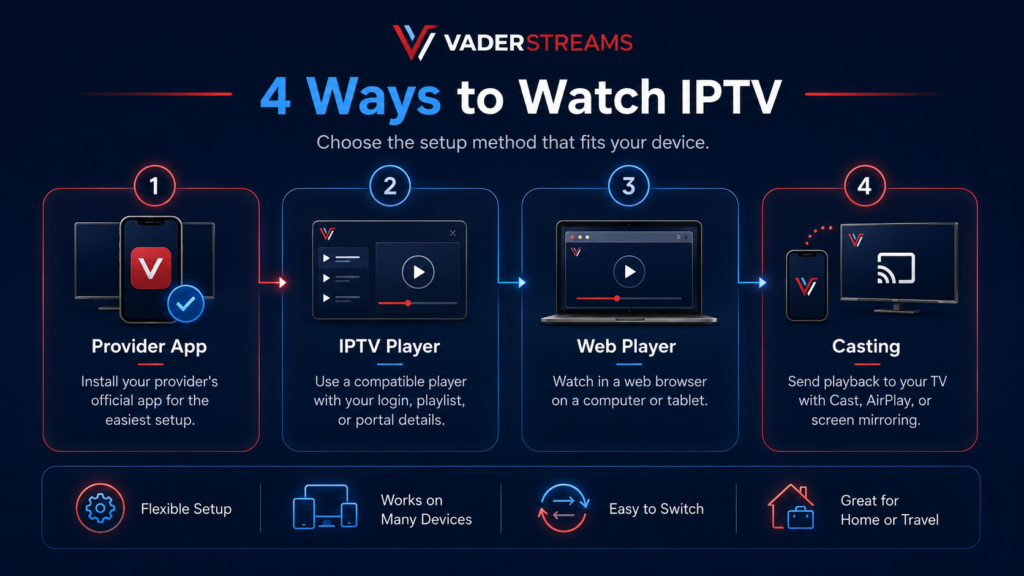
There are four main ways to watch IPTV.
Method 1: Use the Provider’s Official App
This is usually the simplest option.
An official application may already contain:
- The correct server configuration
- Account authentication
- Channel categories
- Electronic program guide data
- Movies and series
- Catch-up programming
- Support links
- Automatic service updates
You generally need only an email, password, or activation code.
The disadvantage is that the app may not be available on every device platform.
Method 2: Use a Compatible IPTV Player
A third-party player acts as the interface between your device and subscription.
Depending on the player, you may sign in with:
- An M3U playlist
- A username, password, and server URL
- A portal address
- A provider-generated code
A player may organize live channels, films, series, favourites, and program-guide information. The player does not establish whether the underlying content is authorized and does not usually supply channels by itself.
Method 3: Use a Web Player
Some providers offer a browser-based player.
This can be useful on:
- Windows computers
- Macs
- Chromebooks
- Tablets
- Smart TVs with capable browsers
- Hotel or temporary devices where installing an app is impractical
A web player is convenient, but it may offer fewer remote-control features than a television application. Browser support for video formats, subtitles, audio tracks, and full-screen playback can also vary.
Method 4: Cast or Mirror From Another Device
Casting sends supported video from a phone, tablet, or computer to a compatible television or streaming receiver.
Screen mirroring duplicates the entire source-device display on the television.
Casting generally offers better performance because the receiving device can retrieve and play the stream directly. Mirroring is more universal, but notifications, orientation changes, battery usage, and source-device performance may affect the experience.
Google advises connecting the casting device and compatible television or receiver to the same Wi-Fi network. Apple likewise supports video streaming and screen mirroring from an iPhone or iPad to Apple TV, compatible smart televisions, and supported Mac computers through AirPlay.
IPTV Device Comparison
| Device | Ease of setup | App flexibility | Remote-friendly | Best use |
|---|---|---|---|---|
| Android TV or Google TV | Excellent | Excellent | Yes | Most households and advanced users |
| Amazon Fire TV | Excellent | Very good | Yes | Affordable television setup |
| Apple TV | Very good | Good | Yes | Apple households and smooth performance |
| Samsung Smart TV | Good | Moderate | Yes | Simple setup without an external box |
| LG Smart TV | Good | Moderate | Yes | Native webOS viewing |
| Roku | Moderate | Limited for specialist players | Yes | Official provider and mainstream apps |
| Android phone or tablet | Excellent | Excellent | Touchscreen | Mobile viewing and account testing |
| iPhone or iPad | Excellent | Good | Touchscreen | Mobile viewing and AirPlay |
| Windows or Mac | Excellent | Excellent | Keyboard and mouse | Browser playback and troubleshooting |
| Chromecast or casting | Good | Source-app dependent | Phone-controlled | Occasional big-screen viewing |
| Gaming console | Limited | Platform dependent | Controller or media remote | Official streaming apps |
| Older television plus HDMI device | Very good | Depends on connected device | Yes | Extending the life of a non-smart TV |
How to Watch IPTV on a Samsung Smart TV
Samsung televisions generally use the Tizen operating system. Available applications vary by model, year, and country.
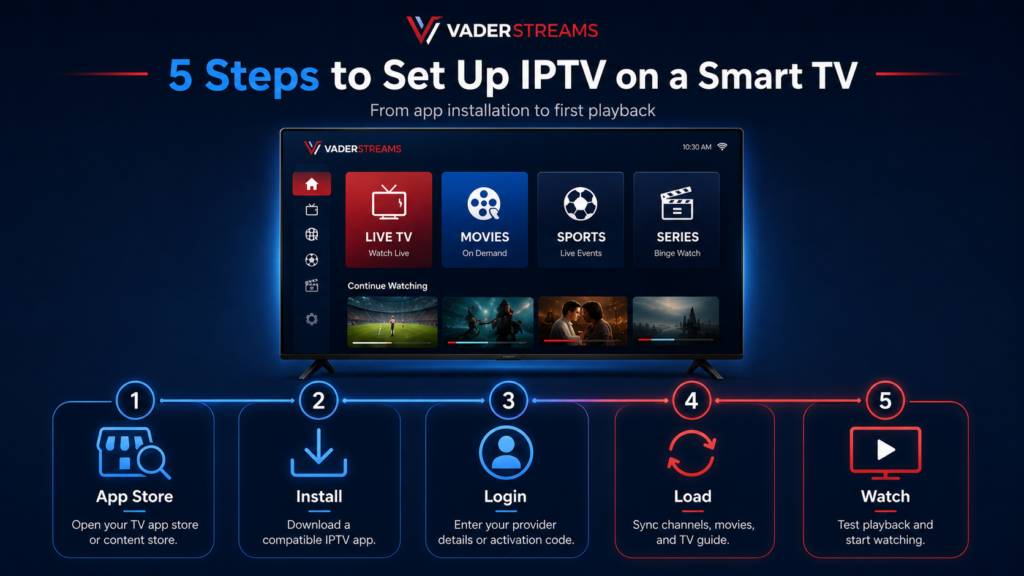
Samsung’s official installation process is to press the Home button, open Apps, search for the required application, select it, and choose Install.
Setup Steps
- Turn on the television and connect it to the internet.
- Press Home on the Samsung remote.
- Open Apps.
- Select the search icon.
- Search for the official provider app or a compatible IPTV player.
- Open the app listing and select Install.
- Launch the application.
- Enter the login information supplied by your provider.
- Allow the channel list and program guide to load.
- Test live television and on-demand playback.
When the App Is Not Available
The application may be unavailable because:
- The television is too old
- The app does not support Tizen
- The app is unavailable in the Canadian store
- The television’s region is set incorrectly
- The developer discontinued the television version
The most reliable solution is usually to connect an Android TV, Google TV, Fire TV, or Apple TV device through HDMI.
Samsung Performance Tips
- Remove unused applications when storage is low.
- Keep the television software updated.
- Use Ethernet when the TV is close to the router.
- Avoid loading extremely large channel lists on an older television.
- Add your most-used channels to favourites.
How to Watch IPTV on an LG Smart TV
LG smart televisions generally use webOS.
LG’s current instructions direct users to press Home, open Apps or the LG Content Store, search for the application, and select Install. Menu names differ between webOS versions.
Setup Steps
- Connect the LG television to the internet.
- Press the Home button.
- Open Apps or LG Content Store.
- Select the search option.
- Search for the provider app or compatible player.
- Select Install.
- Launch the application.
- Enter your playlist, portal, activation code, or account credentials.
- Wait for the content to synchronize.
- Test several channels and one on-demand title.
LG-Specific Considerations
Older webOS televisions may have:
- Less storage
- Slower processors
- Limited video-codec support
- Fewer available applications
- Slower navigation through large libraries
An external streaming device can provide a faster interface without requiring a new television.
How to Watch IPTV on Android TV or Google TV
Android TV and Google TV are among the most flexible platforms for the best IPTV experience because they support a broad range of streaming applications.
Google’s official process is to open the Apps tab, browse or search for an application, select it, and follow the installation instructions.
Setup Steps
- Connect the television or streaming box to the internet.
- Sign in to a Google account when required.
- Open Apps or the Google Play Store.
- Search for the provider’s recommended application.
- Confirm the developer before installing.
- Select Install.
- Open the player.
- Choose the correct login method.
- Enter the details exactly as provided.
- Allow the playlist and EPG to load.
- Test live channels, VOD, subtitles, and audio tracks.
Common Login Options
A player may display choices such as:
- Sign in with username and password
- Load playlist or file
- Add M3U URL
- Add portal
- Enter activation code
- Sign in with provider credentials
Use the method specified by the provider. Converting between formats without guidance can cause missing categories or guide information.
Recommended Settings
Start with default settings. Change only what is necessary.
Useful options may include:
- Hardware or software video decoding
- Automatic frame-rate matching
- EPG refresh interval
- Parental-control PIN
- Subtitle language
- Audio language
- Buffer size
- External player support
Hardware decoding generally reduces processor load, but software decoding can help when a device has compatibility problems with a particular stream.
How to Watch IPTV on Amazon Fire TV
Fire TV devices include Fire TV Sticks, Fire TV Cubes, and televisions with Fire TV built in.
Amazon instructs users to search for applications from the Fire TV main menu and download them through the Amazon Appstore.
Setup Steps
- Connect the Fire TV device to the television and internet.
- Sign in to your Amazon account.
- From the home screen, select Find or the search icon.
- Search for the official provider app or recommended player.
- Check the application name and developer.
- Select Get or Download.
- Open the application.
- Enter the supplied login information.
- Wait for the first synchronization.
- Add the application to the front of your app list.
Fire TV Performance Tips
- Keep several hundred megabytes of storage free.
- Remove unused applications.
- Restart the device if navigation becomes slow.
- Use the original power adapter rather than a low-powered television USB port.
- Use a compatible Ethernet adapter when Wi-Fi is unreliable.
- Avoid changing developer settings unless they are necessary for a legitimate application.
When an App Is Missing
Before installing an application from outside the Amazon Appstore, confirm that:
- The provider or developer offers an official Fire TV installation file
- The download comes from the verified developer
- The app is appropriate for your device
- You understand the permissions it requests
Installing unknown files creates unnecessary security and privacy risks.
How to Watch IPTV on Apple TV
Apple TV offers responsive performance and a television-focused interface. Application choice may be narrower than on Android-based devices, but several providers and third-party players support tvOS.
Apple’s official steps are to open the App Store, search for the application, and select the price or Get button.
Setup Steps
- Connect Apple TV to the internet.
- Open the App Store.
- Search for the provider app or compatible IPTV player.
- Review the developer and app details.
- Select Get or purchase the application.
- Open the player.
- Add the account using the supported login method.
- Let the application load the guide and categories.
- Test live and on-demand playback.
- Enable subtitles and preferred audio languages where available.
Watching Through AirPlay
When the IPTV application supports AirPlay:
- Connect the iPhone or iPad and Apple TV to the same Wi-Fi network.
- Start playback on the mobile device.
- Tap the AirPlay or playback-destination icon.
- Select the Apple TV.
- Use the mobile device as the controller.
You can also mirror the entire iPhone or iPad screen through Control Centre, although direct AirPlay playback is usually more convenient. Apple officially supports both streaming and screen mirroring through AirPlay.
How to Watch IPTV on Roku
Roku works best when the provider offers an official application in the Roku Store. Specialist IPTV-player availability is more limited than on Android TV or Fire TV.
Roku’s official installation process is to press Home, open Store, select Apps, choose an application, and select Add app when it is available.
Setup Steps
- Connect Roku to the television and internet.
- Press Home.
- Open Store.
- Select Apps.
- Search for the provider’s official application.
- Select Add app.
- Open the application.
- Sign in or activate the device.
- Test playback.
When No Compatible Roku App Exists
Use one of these alternatives:
- Connect a supported streaming box through HDMI.
- Cast from a compatible mobile application.
- Use screen mirroring when supported.
- Use the provider’s official mainstream app if available.
- Watch through a computer connected by HDMI.
Do not assume an Android installation file can be installed on Roku. The platforms use different application systems.
How to Watch IPTV on an Android Phone or Tablet
Android phones and tablets are useful for mobile viewing and initial account testing.
Setup Steps
- Open the Google Play Store.
- Search for the provider’s official app or recommended IPTV player.
- Verify the developer.
- Install and open the application.
- Select the correct login method.
- Enter the account information.
- Allow the channel list to load.
- Test playback on Wi-Fi.
- Adjust subtitle and audio settings.
- Add favourite channels.
Mobile Data Considerations
Video streaming can consume substantial data. Higher resolution, frame rate, and bitrate increase usage.
Before streaming over a mobile network:
- Check your monthly allowance.
- Disable automatic 4K playback.
- Use Wi-Fi for long viewing sessions.
- Monitor roaming charges when travelling.
- Lower the playback quality when the signal is unstable.
Cast to a Television
When the player includes Google Cast:
- Connect the phone and television or receiver to the same Wi-Fi network.
- Open the application.
- Tap the Cast icon.
- Select the television.
- Start the desired channel or program.
Google’s casting guidance requires the source device and compatible receiver to use the same wireless network.
How to Watch IPTV on an iPhone or iPad
iPhones and iPads support IPTV through provider applications, compatible players, web players, and AirPlay.
Apple’s installation process is to open the App Store, search for the application, and select Get or the displayed purchase button.
Setup Steps
- Open the App Store.
- Search for the provider application or recommended player.
- Check the app developer.
- Install the application.
- Open it and choose the correct account type.
- Enter the supplied details.
- Wait for the categories and guide to load.
- Test playback over Wi-Fi.
- Set preferred subtitles and audio languages.
- Use AirPlay for television viewing when supported.
AirPlay Setup
- Connect the iPhone or iPad and AirPlay-compatible receiver to the same Wi-Fi network.
- Open the IPTV or television application.
- Start a stream.
- Tap the AirPlay icon.
- Select the television or Apple TV.
For screen mirroring, open Control Centre, choose Screen Mirroring, and select the receiving device.
Some applications restrict mirroring or external playback because of content-protection rules. In that case, use the app directly on a supported television device.
How to Watch IPTV on a Windows Computer
Windows supports several IPTV methods:
- Provider desktop application
- Compatible media player
- Web player
- Browser-based television service
- Casting to a compatible display
- HDMI connection to a television
Browser Setup
- Open the provider’s official website.
- Navigate to the web player.
- Confirm that the page uses a secure connection.
- Sign in.
- Select a channel or program.
- Enter full-screen mode.
- Connect the computer to the television when desired.
Desktop Player Setup
- Install the provider’s recommended application or trusted media player.
- Open the player.
- Add the playlist or account.
- Wait for the channel list to load.
- Organize favourites.
- Test the guide, subtitles, and full-screen mode.
Connect the Computer to a Television
The most reliable method is usually HDMI:
- Connect the computer to the television with an HDMI cable.
- Select the correct HDMI input on the television.
- In Windows display settings, choose duplicate or extended display.
- Select the television as the audio output.
- Open the IPTV player in full-screen mode.
Windows also supports wireless projection to compatible Miracast displays through Windows key + K. Wired HDMI generally produces more consistent video and audio.
How to Watch IPTV on a Mac
Mac users can watch through:
- A provider web player
- A compatible macOS application
- A network-stream media player
- AirPlay
- An HDMI or USB-C display adapter
Web or App Setup
- Open the provider’s official player or install the recommended macOS app.
- Sign in or add the playlist.
- Test playback.
- Select the correct audio output.
- Use full-screen mode for television viewing.
AirPlay From a Mac
When the television or Apple TV supports AirPlay:
- Connect both devices to the same network.
- Open Control Centre on the Mac.
- Select Screen Mirroring.
- Choose the receiving television or Apple TV.
- Open the IPTV application or web player.
Apple supports AirPlay for streaming audio and video and for mirroring a Mac to a compatible television.
How to Watch IPTV With Chromecast or Google Cast
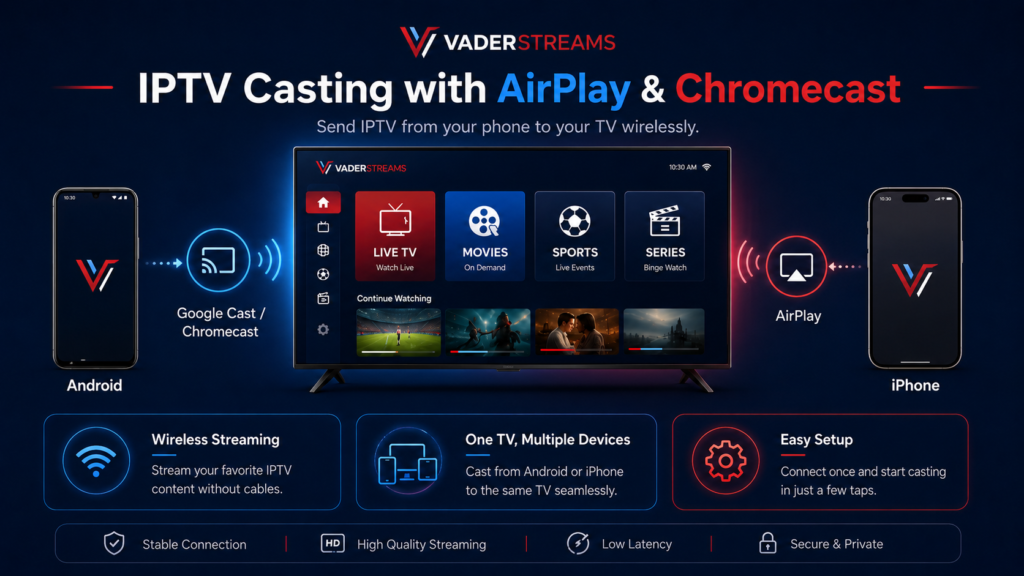
Chromecast can work in two different ways.
Native Casting
The application includes a Cast button and sends playback to the Chromecast or compatible television.
This is the preferred method because the receiver handles playback directly.
Screen Mirroring
The entire phone, tablet, or computer screen appears on the television.
This is useful when the application lacks native casting, but it may increase battery usage and introduce more delay.
Chromecast Setup
Google’s official quick-start process involves connecting Chromecast to the television and power, installing Google Home on a mobile device, completing setup, and then casting supported content.
After initial setup:
- Connect the source device and Chromecast to the same Wi-Fi network.
- Open the IPTV or provider application.
- Tap the Cast icon.
- Select the receiver.
- Start playback.
Keep the phone connected to the network. Some apps use it only as a remote, while others require it to remain actively involved in playback.
How to Watch IPTV on a PlayStation or Xbox
Gaming consoles support selected entertainment applications, but they are not as flexible as dedicated Android TV or Fire TV devices.
PlayStation allows users to download supported video applications from the media section or All Apps menu. Availability depends on the application and region.
Recommended Console Setup
- Open the console’s media or application store.
- Search for the provider’s official app.
- Download it when available.
- Sign in.
- Test playback with the controller or media remote.
When no compatible application exists, use:
- A web browser, if the console and provider support browser playback
- A separate streaming device
- A computer connected to the television
- Casting to another compatible receiver
A dedicated streaming device is usually easier to navigate and offers broader IPTV-player support.
How to Watch IPTV on an Older or Non-Smart TV
A television does not need built-in apps to display IPTV. It only needs a working HDMI input.
Connect one of the following:
- Android TV box
- Google TV device
- Fire TV Stick
- Apple TV
- Roku device
- Laptop or desktop computer
- Compatible casting receiver
Setup Steps
- Connect the streaming device to an HDMI port.
- Connect it to power.
- Select the corresponding HDMI input.
- Complete the device’s internet setup.
- Install the IPTV or provider application.
- Enter the account details.
- Test playback.
This approach can be more responsive than using the built-in software of an older smart television.
How to Use IPTV on Multiple Devices
Installing an application on several devices does not necessarily mean you can watch on all of them simultaneously.
Check the subscription for:
- Number of permitted devices
- Number of simultaneous streams
- Household or IP restrictions
- Mobile viewing rules
- Travel restrictions
- Device activation limits
Bandwidth for Multiple Screens
Estimate bandwidth per active stream.
For example:
- Two HD streams may need 20–30 Mbps of stable available capacity.
- Three Full HD streams may need 30–45 Mbps or more.
- Two 4K streams may require 50 Mbps or more before accounting for other activity.
Provide additional headroom for:
- Video calls
- Cloud backups
- Gaming
- Software downloads
- Security cameras
- Other streaming services
When one screen stops after another begins, the account may permit only one simultaneous connection.
Wi-Fi or Ethernet for IPTV?
Ethernet Advantages
- More consistent connection
- Less interference
- Lower latency
- Better performance during busy hours
- Fewer unexplained drops
Ethernet is preferable for a television or box that remains in one location.
Wi-Fi Advantages
- Easier installation
- No visible cable
- Suitable for phones and tablets
- Flexible placement
- Good performance with modern routers
For Wi-Fi streaming:
- Use 5 GHz or 6 GHz near the router.
- Use 2.4 GHz when range is more important.
- Keep the router in an open, elevated location.
- Avoid placing it behind the television or inside furniture.
- Use a mesh system in large or multi-storey homes.
- Test speed where the streaming device is located.
Pros and Cons of Watching IPTV Across Multiple Devices
Advantages
- Watch on televisions, phones, tablets, and computers
- Move between rooms without installing traditional television wiring
- Use mobile devices while travelling, subject to provider rules
- Choose the interface that works best for each household member
- Replace an outdated smart TV interface with a modern streaming box
- Use favourites, profiles, subtitles, and electronic program guides
- Connect several screens when the subscription permits it
Disadvantages
- Applications differ between platforms
- Some devices lack compatible IPTV players
- Older televisions may have slow processors or limited storage
- Multiple streams require additional bandwidth
- Login details may need to be entered separately on every device
- Casting and mirroring can be less convenient than a native app
- Device limits can prevent excessive activations
- Settings may not synchronize between different applications
Common Setup Mistakes
Installing the First App With a Similar Name
Application stores may contain several apps with nearly identical names.
Verify:
- Developer name
- App icon
- Provider instructions
- Official website With a Similar Name
Application stores may contain several apps with nearly identical names.
Verify:
- Developer name
- App
- Supported login format
Assuming the Player Includes a Subscription
Most IPTV players are interfaces. Purchasing a player licence does not automatically include channels.
Entering the Server Address Incorrectly
Common errors include:
- Missing
http://orhttps:// - Adding an unnecessary space
- Using a capital letter incorrectly
- Entering an M3U address into a portal field
- Confusing the playlist name with the username
- Copying punctuation from an email
Using More Connections Than the Plan Allows
Opening a second stream may disconnect the first when the subscription includes only one connection.
Choosing the Wrong Television App
A mobile Android application may not be designed for a remote control. Install the Android TV version when using a television.
Ignoring Device Storage
Low storage can cause:
- Application crashes
- Failed updates
- Slow guide loading
- Missing artwork
- Unresponsive menus
Changing Every Playback Setting
Changing the decoder, buffer, DNS, VPN, frame rate, player, and router settings simultaneously makes troubleshooting harder.
Change one variable and test again.
Using Weak Wi-Fi Because the Internet Plan Is Fast
A fast home internet package does not guarantee a strong connection behind several walls.
Test the speed on the actual streaming device.
Sharing Login Details Through Public Messages
Playlist URLs and server credentials can expose the subscription. Send them only through secure, private channels.
Troubleshooting IPTV on Any Device
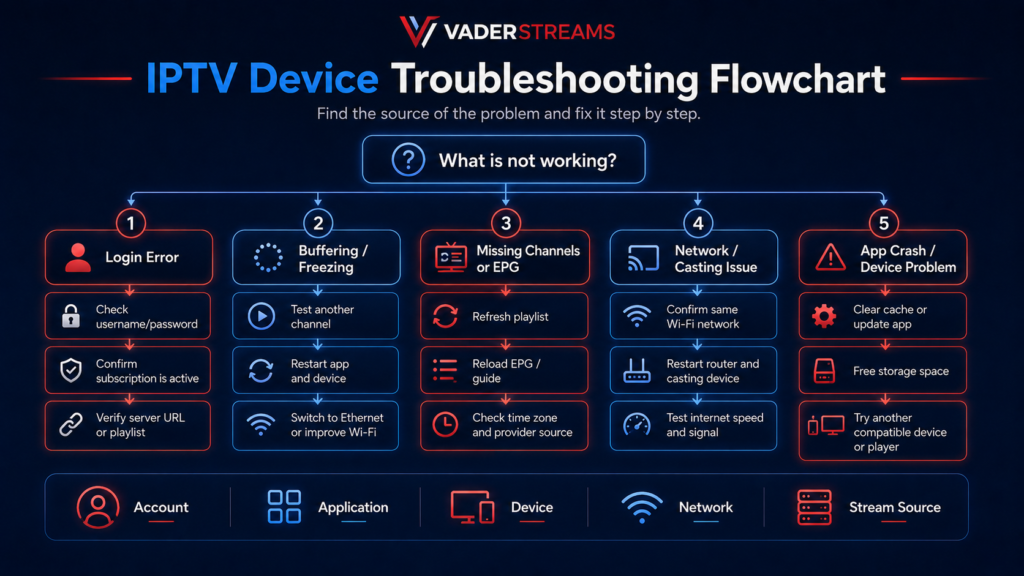
The App Will Not Install
Check:
- Whether the application supports the operating system
- Whether enough storage is available
- Whether the device software is current
- Whether the app is available in Canada
- Whether the device model is too old
- Whether parental or purchase controls block installation
When the app is unavailable, use a supported external streaming device.
Login Failed
Confirm:
- Username
- Password
- Server address
- Playlist address
- Subscription expiry date
- Device activation status
- Maximum connection limit
Type the credentials manually when copied text may contain hidden spaces.
Channels Are Not Loading
Try:
- Opening a different channel
- Restarting the application
- Refreshing the playlist
- Restarting the device
- Testing another network
- Checking the account expiry
- Contacting the provider
When one channel fails but others work, the problem is likely source-specific.
IPTV Keeps Buffering
Follow this order:
- Pause downloads and cloud backups.
- Test another channel.
- Test the connection on the streaming device.
- Restart the player.
- Restart the device.
- Restart the modem and router.
- Move closer to the router.
- Switch to Ethernet.
- Lower the stream resolution.
- Test the account in another application or device.
Sound but No Picture
Possible causes include:
- Unsupported video codec
- Decoder problem
- Outdated device software
- HDMI compatibility issue
- Stream-specific failure
Switch between hardware and software decoding when the player offers that setting.
Picture but No Sound
Check:
- Volume and mute settings
- Bluetooth audio connections
- Television audio output
- Alternate audio tracks
- Surround-sound compatibility
- HDMI connection
- Player audio decoder
EPG Times Are Incorrect
Check the:
- Device time
- Time zone
- Daylight-saving setting
- EPG offset
- Provider guide source
Canadian viewers should ensure the device uses the correct regional time zone rather than a generic North American setting.
Casting Device Cannot Find the Television
Confirm that:
- Both devices are on the same Wi-Fi network
- Guest-network isolation is disabled
- Casting is enabled on the television
- The receiver is powered on
- The application supports casting
- The phone is not using a conflicting VPN connection
Expert Tips for a Better Experience
The following are observed best practices rather than guarantees for every provider or device best practices rather than guarantees for every provider.
Use a Dedicated Streaming Device for the Main Television
A current Android TV, Google TV, Fire TV, or Apple TV device often provides a faster and more consistent interface than an ageing television operating system.
Test the Account on a Phone First
Mobile installation is usually quick. It helps confirm that the credentials work before you troubleshoot the television.
Create a Small Favourites List
Do not browse the full catalogue every time. Save the channels your household actually watches.
Keep a Second Compatible Player
A backup player helps determine whether a playback problem comes from:
- The service
- The device
- The application
- A specific decoder
Use Ethernet for Important Live Events
A wired connection reduces the risk of local wireless interference during sports, news, or other time-sensitive programming.
Reboot Before Major Events
Restart the streaming device and router in advance rather than waiting for a problem during the broadcast.
Avoid Unnecessary 4K Playback
A stable Full HD stream is usually preferable to unstable 4K playback. Choose resolution according to screen size, internet stability, and actual content quality.
Label Household Devices
Use clear names such as:
- Living Room TV
- Bedroom Fire TV
- Family iPad
- Office Computer
This makes device management and support easier.
Store Account Information Securely
Use a password manager or protected note for:
- Login credentials
- Subscription expiry
- Provider support details
- Application name
- Number of permitted streams
Frequently Asked Questions
Can IPTV work on every Smart TV?
Not every IPTV application works on every Smart TV. Compatibility depends on the television’s operating system, model year, app store, region, and available storage. An external HDMI streaming device is the simplest solution when the required app is unavailable.
What is the easiest device for watching IPTV?
Android TV, Google TV, and Fire TV devices are generally the easiest because they support many television-focused applications. Apple TV is also straightforward when the required application supports tvOS.
Do I need a box for IPTV?
No. A box is unnecessary when your Smart TV already supports the required application. A streaming box can still improve app choice, speed, storage, and long-term compatibility.
Can I use the same IPTV subscription on my phone and television?
Usually, yes, but simultaneous playback depends on the subscription. A one-connection account may allow installation on several devices while permitting only one active stream.
Can I watch IPTV without installing an app?
Yes, when the provider offers a web player. You can also use a browser, cast from another device, mirror a screen, or connect a computer through HDMI.
Can I cast IPTV from my phone to my television?
Yes, when the application supports Google Cast, AirPlay, or compatible screen mirroring. Both devices usually need to be on the same local network.
Why does IPTV work on my phone but not on my television?
The television application may use a different login format, unsupported codec, outdated software, or weak Wi-Fi connection. Test the exact credentials and check whether the television app is approved by the provider.
Is IPTV better on a Smart TV or Fire TV Stick?
A Smart TV offers fewer devices and cables. A Fire TV device often provides broader application support and can be replaced independently when it becomes outdated. Performance depends on the television and Fire TV models.
Can I watch IPTV on a laptop?
Yes. Use a provider web player, desktop application, or compatible media player. You can connect the laptop to a television through HDMI for a larger screen.
Does IPTV work on mobile data?
Yes, when the provider permits mobile access and the connection is fast enough. Video can consume substantial data, so monitor your plan and roaming charges.
Why does the app freeze when loading channels?
The device may have limited memory, low storage, an oversized playlist, corrupted cache data, or an outdated application. Restart the app, clear its cache when supported, and ask whether unused categories can be removed.
Can I use IPTV in two different homes?
That depends on the provider’s terms and connection policy. Some subscriptions are limited to one household or network, while others allow multiple locations.
Do I need a VPN to watch IPTV?
Not normally. A VPN does not create content rights or make an unauthorized service legal. It can also reduce speed or interfere with casting. Use one only for a legitimate privacy or network need and when permitted by the service terms.
Which is better for IPTV: Wi-Fi or Ethernet?
Ethernet is usually more consistent for a fixed television. Good Wi-Fi can still work well when the router is nearby and interference is limited.
How long does IPTV setup take?
A normal setup takes approximately 10–30 minutes once you have the correct application and login details. Older devices, large playlists, and manual activation can take longer.
Conclusion
Watching IPTV on almost any device comes down to choosing the correct application and login method for the platform.
Smart TVs provide a simple all-in-one setup, while Android TV, Google TV, Fire TV, and Apple TV devices generally offer smoother performance and more application flexibility. Phones and tablets are ideal for mobile viewing and account testing. Computers work well through browsers and desktop players, while casting, AirPlay, screen mirroring, and HDMI provide useful alternatives when a native television app is unavailable.
Start with the provider’s official instructions, install apps only from trusted sources, confirm the number of simultaneous connections, and test your internet speed at the device itself. For a main television, use Ethernet where practical and consider a dedicated streaming device when the built-in Smart TV software feels slow or limited.
Explore the VaderStreams IPTV Canada page for compatible subscription options, or read The Complete Guide to IPTV in Canada for a broader explanation of IPTV technology, internet requirements, provider selection, and common terminology.